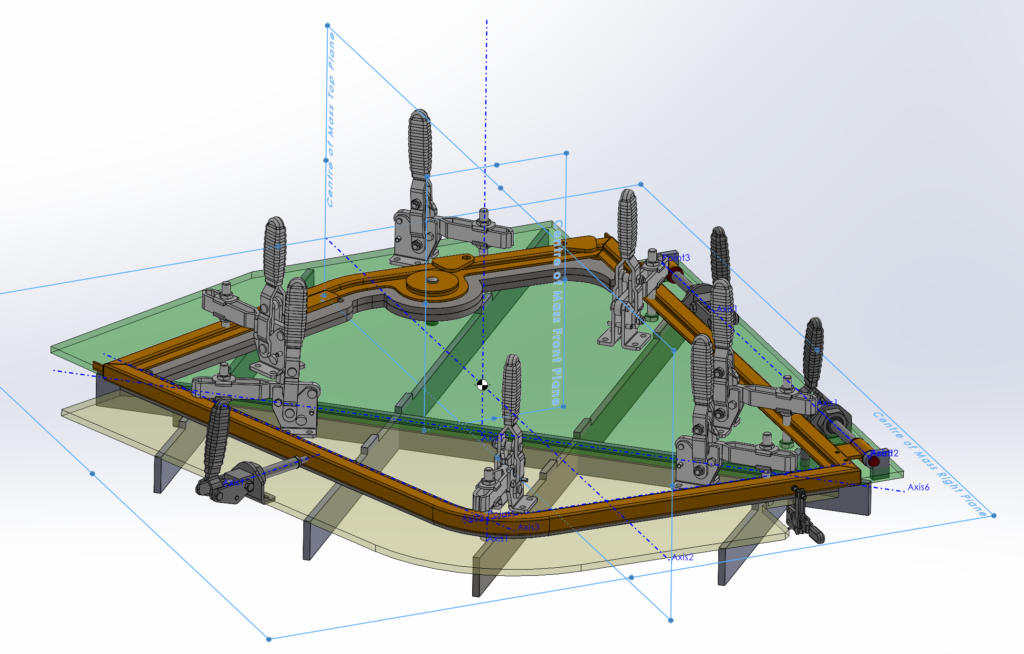


Coordinate Systems Aligned to the Core
To create reference geometry through the centre of mass in SolidWorks using a newly created coordinate system at the centre of mass, follow these steps:
- Determine the Center of Mass: Go to the
Evaluatetab and select theMass Propertiesoption to find the centre of mass for the part or assembly you are working with. The Mass Properties dialog box will show you the center of mass among other properties. - Create a New Coordinate System at the Center of Mass: With the centre of mass identified, you can now create a new coordinate system at this exact location. To do this, go to the
Reference Geometrydropdown in theFeaturestab and selectCoordinate System. In the Coordinate System property manager, for the origin definition, select theCenter of Massoption, which will automatically position the new coordinate system at the centre of mass. You might need to adjust the orientation of the axes if necessary by selecting appropriate references in the model. - Create Reference Geometry Using the New Coordinate System: Utilise the newly created coordinate system to establish reference geometry such as planes or axes. For instance, to create a reference plane, you could choose the
Planeoption from theReference Geometrydropdown and use the coordinate system’s axes or points as references to define the plane’s position and orientation. - Utilise the Reference Geometry: The reference geometry you’ve created can now serve as a foundation for building new features and sketches, or for conducting analyses within your SolidWorks model.
This method ensures that the reference geometry you create is accurately aligned with the centre of mass, leveraging the new coordinate system as a precise reference point.